Auto Attendant
What is the Auto Attendant?
Auto Attendants provide callers with friendly recorded company greetings and dialing menu options. They can route calls to:
- Employees within your company
- Specific groups of employees
- Voicemail
- Other outside numbers
- Business hours
- After hours
- Holiday closures
- Options for multiple locations
- Options in multiple languages
- Sales or support for multiple product/service lines
How do I route calls with Auto Attendant based on the time of day?
To route calls based on the time of day (i.e., after hours versus during business hours), you need to configure an Auto Attendant schedule.
Do I need to set up company-recognized holidays into Auto Attendant?
Yes, you will need to add company-recognized holidays to the Auto Attendant schedule.
On designated holidays, custom-recorded greetings and menu dialing options will play to callers.
Do I need to create or assign an Auto Attendant schedule to run the same greeting every day?
No, you will not need to create or assign an Auto Attendant schedule to run the same greeting every day.
How do I set up the Auto Attendant schedule for business and holiday hours?
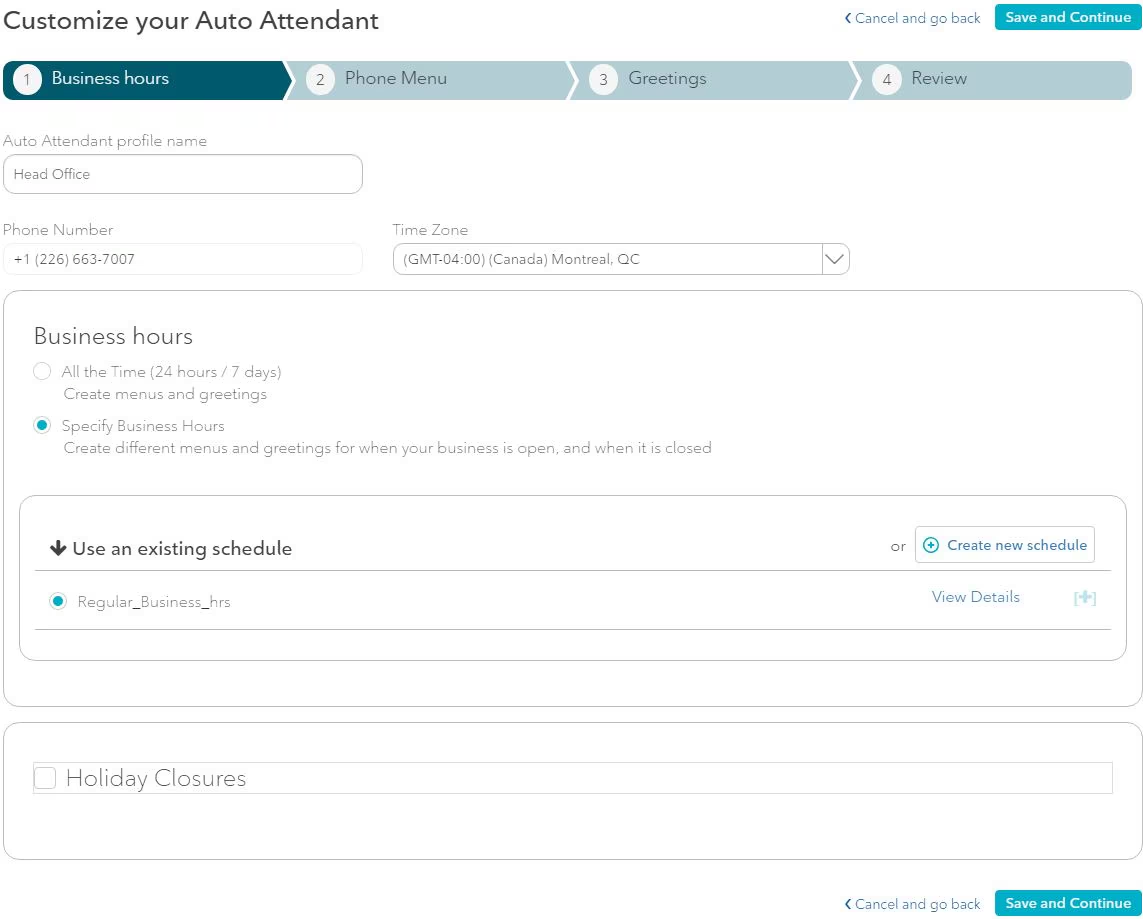
To set up or edit your Auto Attendant schedule for business hours:
- Select Additional Service Settings.
- Select Business and Holiday Hours.
- Enter Auto Attendant profile name, relevant phone number and time zone.
- Select Specify Business Hours.
- To set up a new schedule, select Create new schedule.
- Choose and enter a name, such as the business' location or division name
- Select your opening and closing hours.
- For consistent business hours, select Apply to all days.
- For days your office is closed, check Closed.
- For days with special hours, customize those days.
- To edit an existing schedule, select View Details of the relevant schedule.
- Select Save and Continue.
- Select Additional Service Settings
- Select Business and Holiday Hours
- Select Specify Business Hours
- Select the Holiday Schedules box.
- Select Create a New Schedule
- Enter each holiday or event name.
- Select the start and end dates and times
- Indicate whether the holiday recurs annually.
- Select Next to go to another Auto Attendant feature.
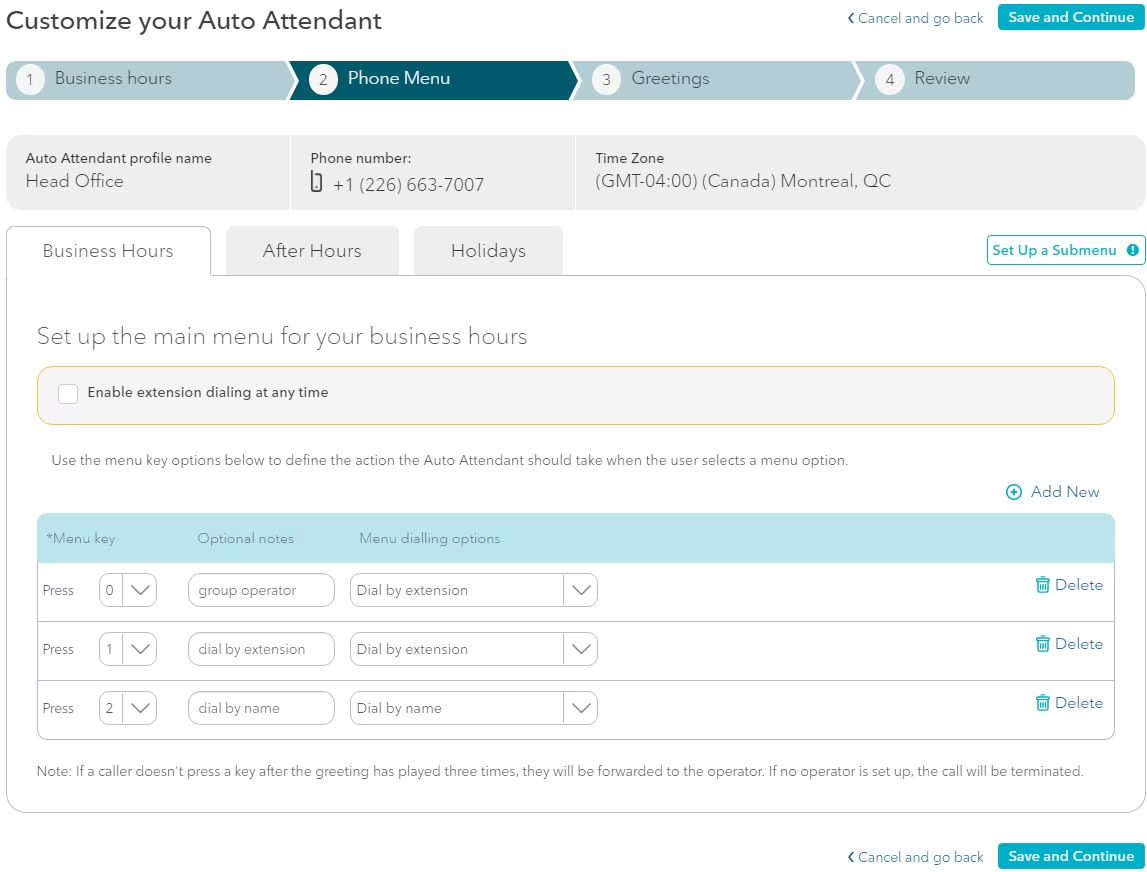
How do I set up my phone menu?
- Select Add New.
- Select the desired dialing menu option.
- Set up 0-9, pound (#), and star (*) as different options for your callers.
- Enter a brief description in Optional Notes of the call routing activity (e.g. Sales department).
- Choose how the call will be handled (e.g. dial by extension).
- Select the phone number to associate with the auto-response (i.e. for an individual or a Hunt Group).
- Select Enable extension dialing at any time if wanted.
How do I record and upload greetings?
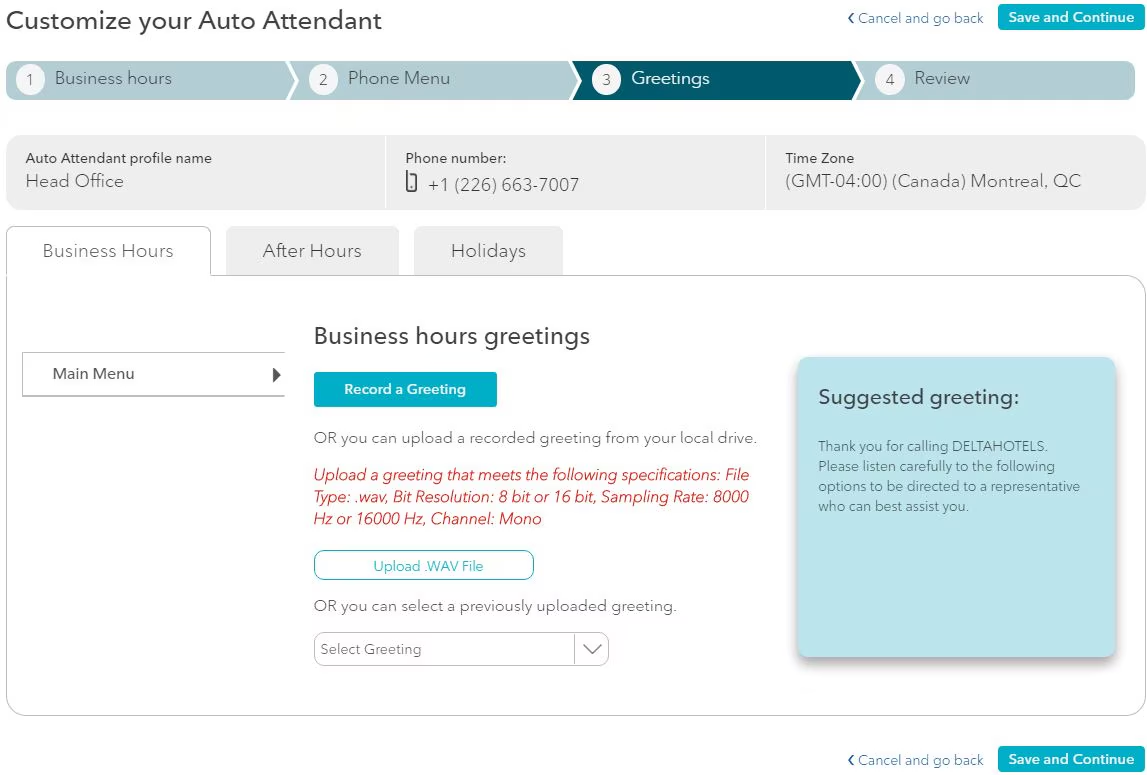
With Auto Attendant, you can record new greetings directly to Advantage Voice using your computer microphone, upload new greetings, or select previously uploaded greetings from your greeting library.
To record a new greeting:
- Enter the greeting name. (e.g. “After hours greeting”).
- Select Record a Greeting.
- Play back your greeting after recording to ensure you are satisfied with it.
- Recorded greetings must meet the following specifications: File type: .wav, Bit Resolution: 8 or 16 bit, Sampling Rate: 8000 Hz or 16000 Hz, Channel: Mono
- Select Save.
- Enter the greeting name.
- Select Upload .WAV File.
- Select the relevant file.
- Select Open.
- Enter the greeting name.
- Select from the list of previously uploaded greetings.
What is a submenu and how do I create submenus?
Many businesses have multiple locations, have several departments or offer a wide range of spoken languages, products and services. Create submenus to allow a second tier of menu options, ensuring that your callers are routed effectively.
To create a submenu:
- Select Customize on the Auto Attendant home page.
- Select Save & Next once you have created an Auto Attendant
- Set up business hours.
- Create a submenu name.
- Add and set the menu keys, dialing options and caller prompts for your callers.
- Select Save when finished.
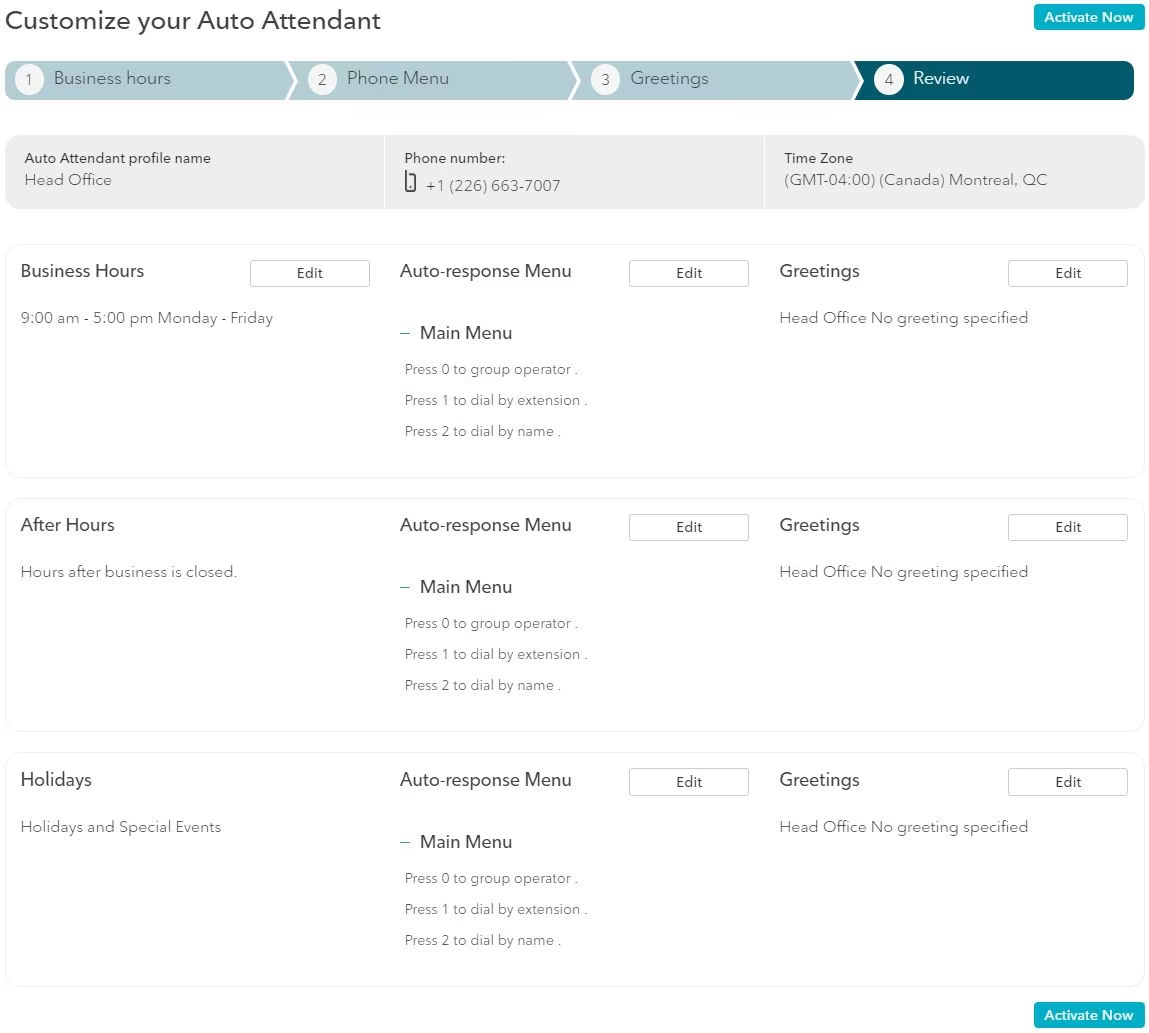
How do I review and activate my Auto Attendant service?
- Review your Auto Attendant selections.
- Select Edit to modify any sections.
- Select Activate to save and activate.
- Dial in to the Auto Attendant to confirm that it’s working.
That's it! You've configured your Auto Attendant.