Set up Ring My Numbers for Advantage Voice (Unison)
What is Ring My Numbers?
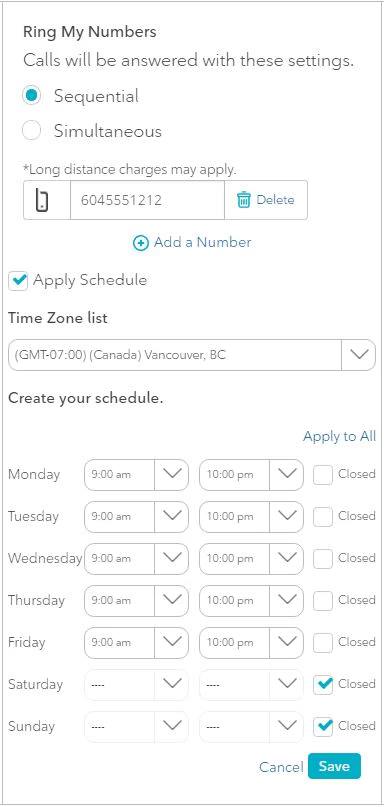
With the Ring My Numbers feature, administrators can choose to make all phones ring at the same time (Simultaneous Ring) or one after another in a specific order (Sequential Ring).Administrators can also schedule when to activate or deactivate these settings. Administrators should configure settings based on peak call times to ensure you don't miss any important calls.
Long distance charges may apply to calls outside of Canada.
How do I set up and schedule Ring My Numbers?
To set up Ring My Numbers, follow these steps:If you haven't signed into your account yet:
- Go to MyBusiness Hub sign-in page.
- Select Sign in.
- Enter your username and password.
Once you’re signed in:
- Select Go to RogersUnison.
- Select User Management.
- Select User Call Settings.
- Select View Details for the relevant subscriber.
- Toggle the on/off switch for Ring My Numbers to On.
- Select either Sequential or Simultaneous to choose when phones should ring.
- If you select Sequential, you can select if you want to allow caller to skip search or select answer confirmation.
- Select an existing phone number or select Add a Number and enter the number to associate with Ring My Numbers.
- To add a schedule to your Ring My Number settings, select Use a schedule template or Create a new schedule.
- If you select Use a schedule template:
- Select desired template.
- Select Save.
- If you select Create a new schedule:
- Select Time Zone.
- Select times for each day of the week.
- Select Closed if business is closed on a particular day.
- Select Save.
- Select Save.