Inseego 5G - Quick Start Guide
Setting up your Inseego MiFi X Pro 5G is quick and easy!
Note: Make sure your device is Powered Off before starting the set-up process.
What's Included?

Inseego MiFi X PRO 5G
USB 3.1 Gen 1, type A to C cable
Connect to the device without the app
- Insert your 5G Home Internet SIM and power up the Inseego MiFi X Pro 5G device.
- Turn on your device and wait for it to load and for the home screen to appear.
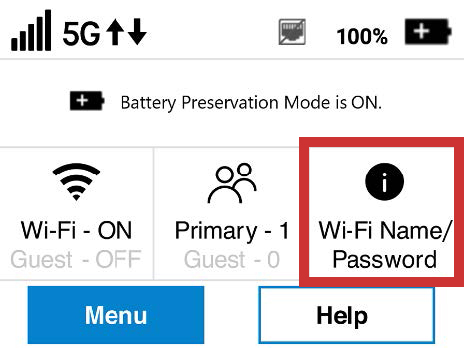
- Select WiFi Name (SSID)/Password on the Home screen.
- The SSID and Password for your primary network will be displayed.
- Use the default SSID and WiFi key displayed on the Inseego MiFi X Pro 5G to connect your devices (e.g. laptop/smartphone).
Set up with the Inseego Mobile app
- Scan the QR code to install the Inseego app from AppStore or Google Play.
- Follow the in-app instructions to set up your device.
- Use the app to configure and customize your device.

Install a SIM card
Check if the SIM card was pre-installed by your service provider. If not, follow these steps to insert your SIM. Note: Make sure the device is turned off before inserting your SIM card. If the device is powered on, remove the plug before proceeding.The MiFi X PRO 5G supports only Nano SIM cards. To prevent damage to the SIM slot, please select the correct SIM for this device.
- Insert a fingernail at the edge of the battery cover and lift and remove the battery cover. Set the cover aside.
- Remove the battery from the battery compartment.
- Lift the SIM access tab by placing a fingernail underneath the white arrow and lifting the tab up and to the right.
- If necessary, remove the SIM card from the outer card, being careful not to touch the gold-colored contacts.
- Slide the SIM card into the slot notch first, with the contact points facing down.
- Close the SIM access tab, place the battery in the battery compartment and replace the cover. The SIM card MUST remain in the SIM card slot when in use.
Power On
Important: Before you use your device, charge the battery for at least four hours to ensure a full initial charge.- To turn your device on, press and hold the Power button for three seconds.
- To turn it off, press and hold the Power button for three seconds until you see the Powering Off screen. Then select Shutdown and select OK.
- Press and release the Power button to wake up the display.
Find the WiFi name and password
- After you turn on your device, the Home screen appears.
- Select Wi-Fi Name/Password on the Home screen.
- The information for your primary network will display. Swipe left to see the information for your guest network.
Connect to WiFi
- The device will broadcast its own wireless network and name.
- Turn on the device you want to connect.
- On the device, open the list of available WiFi networks.
- Select the MiFi primary or guest network and enter the password. Once connected to the internet, the MiFi Home screen displays the connected device.
Change WiFi network name and password
- Make sure your device is connected to the primary network. Open a web browser on your connected device and enter http://my.mifi or http://192.168.1.1
- Select Sign In in the upper right corner of the screen. You can view your Admin password on the device touchscreen by tapping Help > Admin Website. Note: When you first get your MiFi X PRO 5G, this is the same as your primary network’s password.
- Select the WiFi option.
- Select the Primary Network tab.
- To change your WiFi network name, select the Primary Network Name (SSID) text box and enter the new WiFi name.
- To change your WiFi password, select the Password text box and enter the new password.
- Select Save Changes. Once you save the changes, you'll be disconnected from your WiFi network. Connect again using the new network name and password.