

Follow these easy steps to install your Rogers Xfinity Router.
Easy Setup Guide - Rogers Xfinity Router
What's Included?

Power cord/adaptor
Rogers Xfinity Router
Ethernet cable
Setting up your Rogers Xfinity Router | Easy Step-by-Step Guide
Connecting your router and home WiFi
If you’re installing Rogers Xfinity TV only, complete steps 3 to 8. After that, you can set up your Rogers Xfinity set-top box.
- Download the Rogers Xfinity app, and sign in using your MyRogers username and password.


- If the Get Started screen doesn’t show up, select the Account tab then Activate Rogers Xfinity Gateway.
- Scan the QR code on the bottom of your router or manually enter the 12-character Device MAC address shown near the QR code.
- When prompted, connect the router to your internet source. This can be either an Ethernet port on a wall, or an Optical Network Terminal (ONT) provided by Rogers.
- Next, connect the power adapter to your router, then plug it into a power outlet. Don’t plug your router into power bars, extension cords, or outlets with dimmers or wall switches.
- Option 1: Router to Ethernet wall outlet or cable
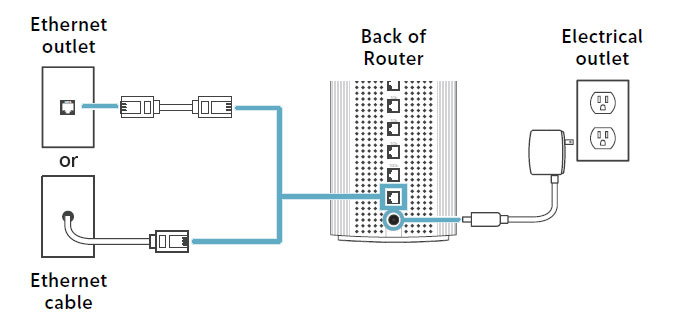
- Option 2: Router to Optical Network Terminal

- Warning: Don’t unplug the fibre optic cable connected to the ONT.

- Now, wait for a solid or blinking white light. This can take between 5 to 20 minutes. The light on your router should flash and turn orange, then green, then turn either solid or blinking white.
- When the light flashes orange and green back and forth: Your router is performing a software update. This can take up to 20 minutes.
- If the light doesn’t turn white: Make sure your power adapter and Ethernet cable are plugged in securely or plug your router into another power outlet.
- When the light turns solid or starts blinking white: You’ve now successfully paired your router to your app.
- To learn more about your router’s LED lights, visit Explore your Rogers Xfinity Router (iOS) or Explore your Rogers Xfinity Router (Android).
- Next, choose a WiFi network name and a password you’ll remember. The app will finish setting up your network. This can take up to 10 minutes.
- Important: Don’t leave the app or unplug your router during this time, or you might need to start over.
- You can now turn on Advanced Security to help protect your network from online cyberthreats.
- Note: Advanced Security will not work if your router is offline or in bridge mode.
You’ve successfully set up your Rogers Xfinity Router.
Optional steps after setting up your router
Now that you’ve setup your Rogers Xfinity Router, explore these steps to personalize and optimize your network:
- Connect your devices using an Ethernet cable: To connect devices like gaming consoles:
-
- Connect one end of the Ethernet cable to the Ethernet port on your device.
- Connect the other end of the Ethernet cable to the Ethernet port on the back of your router.
- Test your internet speed: To find out if your internet speed is performing well, visit Testing the speed of your Router (iOS) or Testing the speed of your Router (Android).
- Personalize your WiFi settings: To learn how to adjust your WiFi network's name, password, security settings and more, visit Edit your WiFi settings (iOS) or Edit your WiFi settings (Android).