

Restarting or factory resetting your Rogers Xfinity Gateway is a simple way to resolve various technical difficulties. There are a few ways you can do this.
How to restart or reset the Rogers Xfinity Gateway
Power-cycling
Power cycling refers to the concept of unplugging your device from power, waiting a few moments, and then plugging it back in. If you’re having trouble connecting to the Internet, simply unplug the power cord for your modem from the electrical outlet or power bar, wait 30 seconds, plug it back in and try restarting. You can try power cycling your Rogers Xfinity Gateway modem to fix internet issues but you can also use power cycling with other devices to troubleshoot connection issues with your TV (by unplugging your PVR or Digital Box) or your Home Phone (by unplugging your phone terminal).
Restart the modem using the Rogers Xfinity app
If you can’t reach the power cord for your modem, you can quickly reboot it using the Rogers Xfinity app:
- Sign in to the Rogers Xfinity (app) using your MyRogers or MyRogers(Shaw) username and password.
- Select WiFi, then View WiFi equipment.
- Select the Gateway modem.
- Select Restart then, Restart Gateway.
Reset the modem using the modem admin page
If you know your modem Admin password, you can complete a restart or factory reset from any connected device with a browser. To do this:
- While connected to your WiFi network, open an internet browser on your computer or device.
- Enter https://10.0.0.1 and hit Enter.
- Your browser may give you a warning about the SSL certificate. To bypass the message:
- Chrome: Select Advanced and then Proceed to 10.0.0.1 (unsafe)
- Edge: Select Advanced then Proceed to 10.0.0.1 (unsafe)
- Firefox: Select Advanced then Accept the Risk and Continue
- Safari: Select Show details and then visit this website.
- Your browser may give you a warning about the SSL certificate. To bypass the message:
- Sign in with the following credentials:
- Username: Admin
- Password: The default password is on the label at the bottom of your gateway. If this is your first time signing in, you’ll be asked to change your password.
- Select Troubleshooting.
- Select Reset/Restore Gateway.
- Select one of the following reset options:
- Reset – Restarts the modem
- Reset WiFi Module – Restarts the WiFi module only
- Reset WiFi Router – Restarts WiFi and router modules
- Restore WiFi Settings – Activates your gateway default settings for WiFi only (only your WiFi settings will be lost)
- Restore Factory Settings – Activates your gateway default settings (all your previous settings will be lost)
Factory reset the modem using the reset button
As a last resort or if you forgot your admin password, you may need to return the modem back to its factory settings. You'll need to set it up again after doing this.
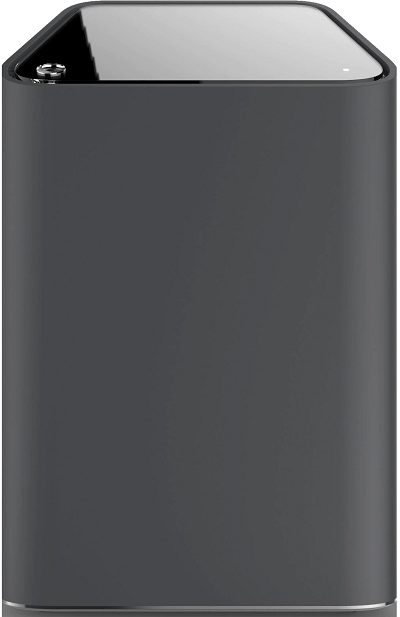
(Gen 1) |
|

(Gen 2) |
|
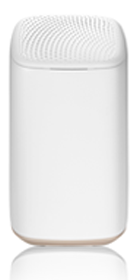
(Gen 3) |
|
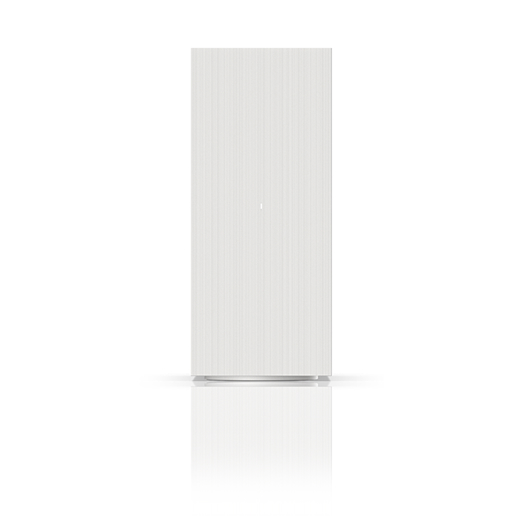
(Gen 4) |
You’ve successfully restarted your gateway. |